Approving scenes
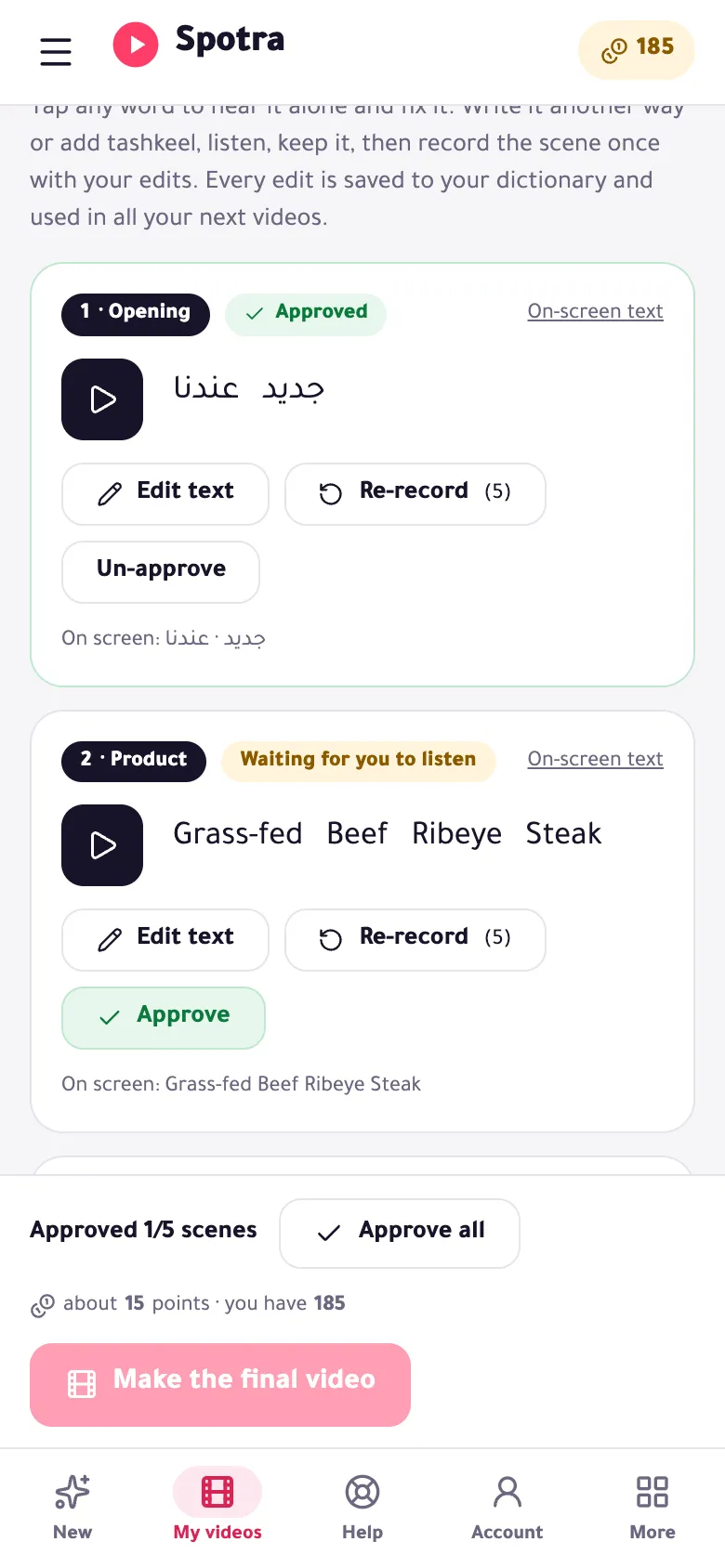
Tap «Approve» on each scene after you listen, or «Approve all» from the bar at the bottom — no video is made until every scene is approved.
Account ownerWordPress siteNews site
- 1
After listening, tap «Approve» — the scene turns green and says «Approved».
- 2
Or tap «Approve all» in the bottom bar.
- 3
Changed your mind? Tap «Unapprove».
- 4
When the last scene is approved, the page scrolls by itself to «All scenes approved — one step left: the video».
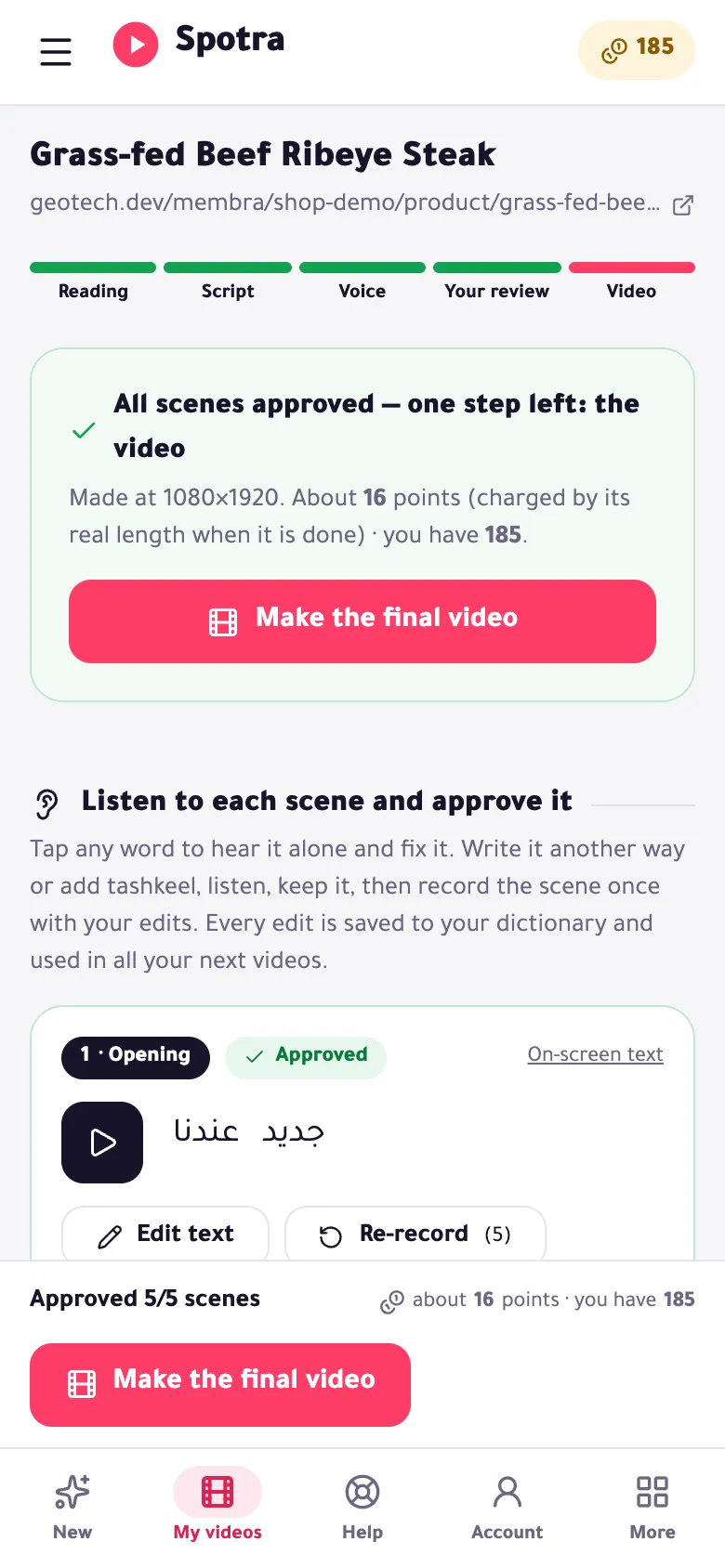
Real screenshots from Spotra — the number is the step, and the coloured frame shows where to tap. Tap a picture to enlarge it.
The video doesn't start on its own — you tap «Make the final video», because it spends your points.
In a «Music only» ad the scenes are approved from the start, since there is no voice.
Was this article helpful?